
Physics
Create and edit Box2D bodies, collision shapes, and joints visually in Pixscape Studio for LibGDX scenes.
On this page
Physics editing lets you author collision bodies, shapes, and joints directly in Pixscape Studio. Studio exports that authored scene data for Runtime to recreate in its Box2D world.
Bodies and joints appear in Items as editable authoring elements. Shapes are selected on the Canvas, and Properties adapts to the focused body, shape, or joint. See Items & Properties for the shared selection model.
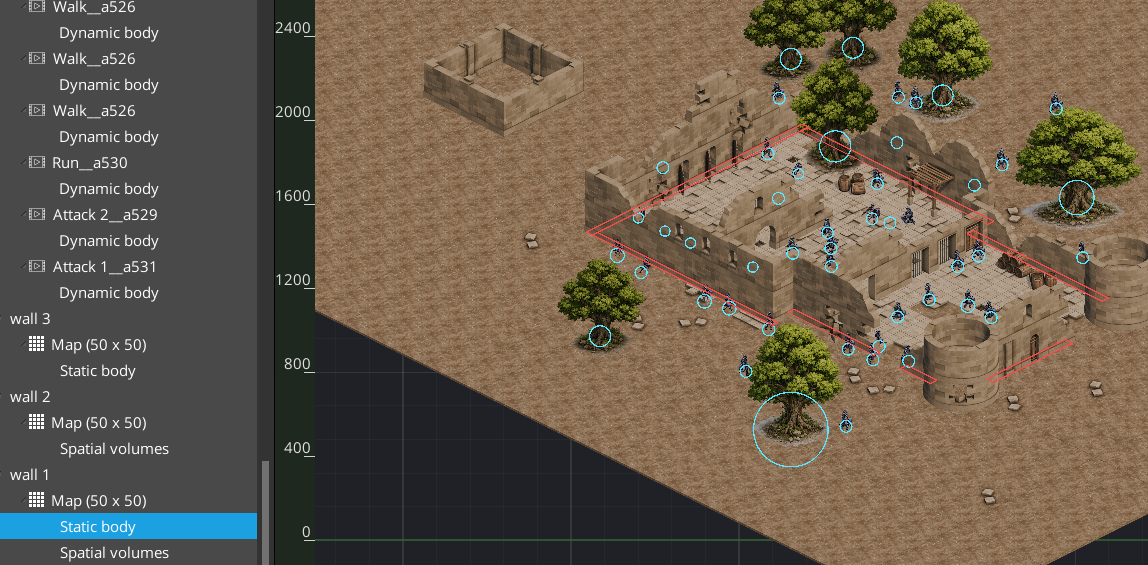
Enter Physics editing
Select supported Physics content to enter Physics editing. The top-center mode indicator changes to Mode: Physics, and the Canvas exposes Physics-specific outlines, handles, and anchors.
The usual entry point is a body in Items. For example, an actor may expose a Dynamic body, while a Tiled Map may expose a Static body. Selecting a joint also focuses its Physics context.
Selection drives this context; you do not need to switch modes from a separate toolbar.
Bodies, shapes, and joints in Items
For a normal selected entity, enable Body in Properties and choose its body Type. The entity then exposes its body in Items; use that body node or the Edit shapes action in Properties to focus its collision geometry.
- A scene entity can expose a
Static body,Dynamic body, orKinematic bodychild when it has authored Physics data. - A body owns its collision shapes. Shapes are selected directly on the Canvas rather than appearing as separate
Itemsnodes. - A joint appears once as an editable child beneath one of its participating bodies.
Selecting a body, Canvas shape, or joint focuses that specific authoring context, and Properties shows the corresponding settings. Not every entity has every kind of Physics content.
Edit shapes
Shapes define the collision geometry attached to a body. After selecting the body in Items, select one of its shapes on the Canvas. The selected shape displays visual handles where its geometry supports them, while Properties shows its authored values.
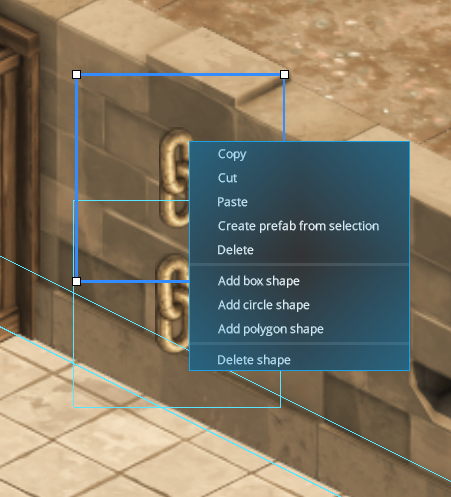
The current authoring choices are Add box shape, Add circle shape, and Add polygon shape. A selected shape can be moved, resized where applicable, or removed with Delete shape; polygons also expose Edit polygon.
The shape panel in Properties provides the matching numerical controls, including geometry, offsets, material values such as density and friction, and collision filtering. Visual and numerical editing both update the same selected shape.
Create a joint
A joint can only be created between two selected entities that already have Physics bodies.
- Select exactly two entities whose Physics bodies should be connected.
- Right-click the Canvas.
- Open
Add joint. - Choose the required joint type.
- Studio creates and selects the new joint.
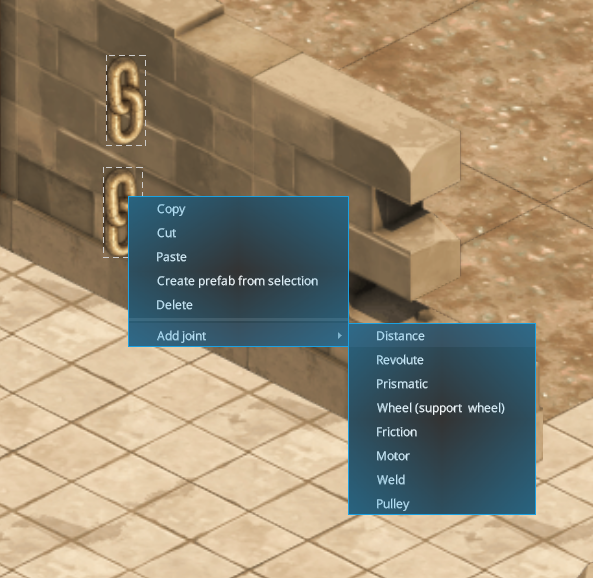
Add joint submenu exposes the available joint types.If Add joint is absent, first confirm that exactly two entities are selected and that both already have bodies. The exact available settings after creation depend on the selected joint type.
Select and configure a joint
Joints appear in Items beneath their Physics content. Select a joint there to target it specifically: Studio enters Physics editing, displays its Canvas guides, and replaces Properties with that joint’s configuration.
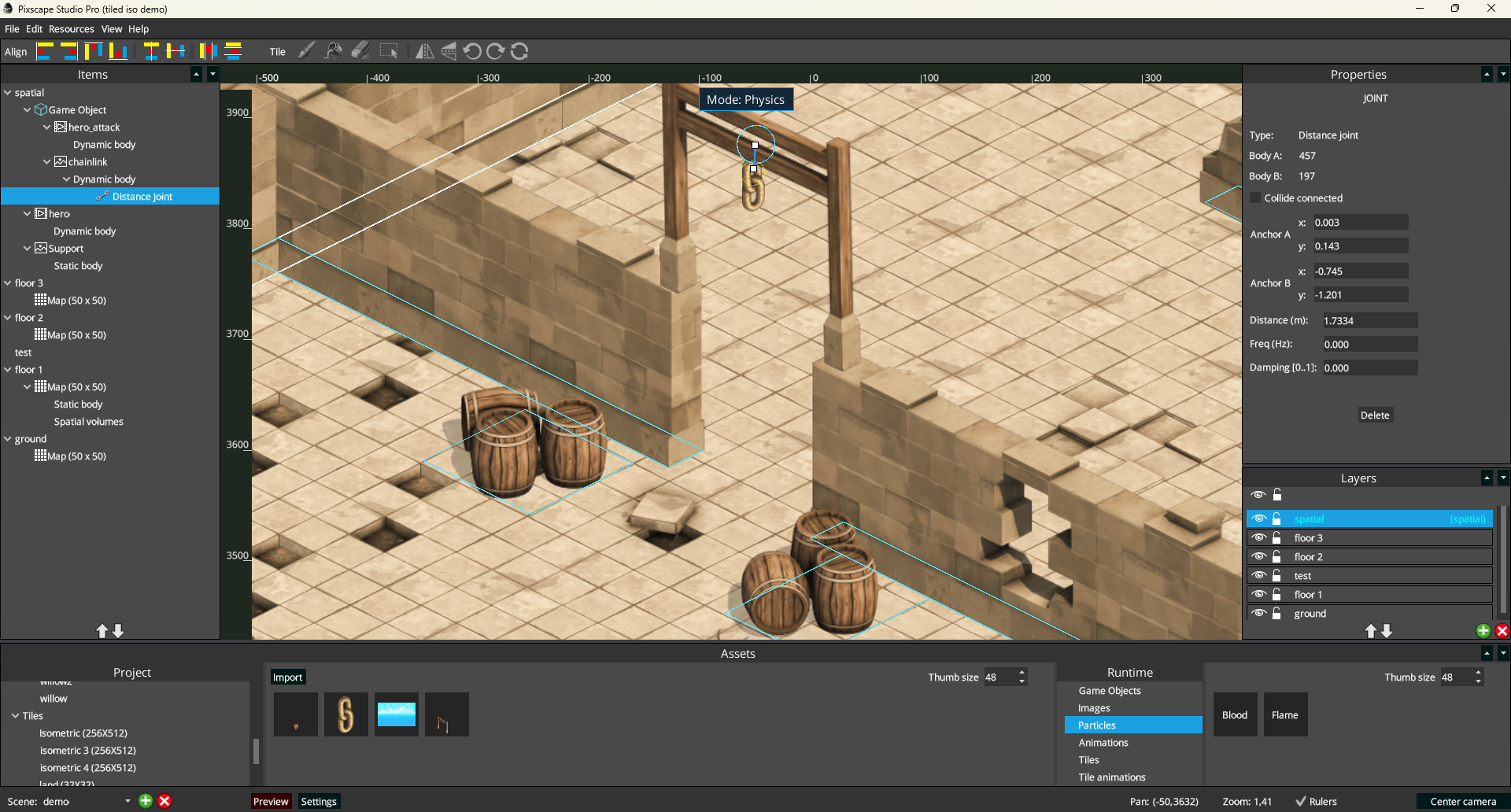
Revolute joint is highlighted in Items, visualized on the Canvas, and configured in Properties.Common joint properties include the two connected bodies, anchors, and whether the connected bodies collide. Type-specific controls can add limits, motors, forces, damping, or other relevant settings; the available fields depend on the joint type.
A Game Object hierarchy can contain several Physics-enabled entities. Its members, bodies, and joints remain individually selectable and editable, and valid conversion or placement preserves their authored Physics data.
Context menu and practical notes
Physics context-menu actions depend on the focused body and the selected shape or joint. If an expected action is missing, check the current selection, owning Universal Layer, and Mode: Physics context first.
Keep collision geometry as simple as the gameplay allows. Circles and boxes are often easier to control for moving actors, while polygons are useful when the collision outline genuinely needs more detail. For Tiled Maps, keep static collision geometry aligned with the parts of the map that are actually solid.
Where to go next
- Read Items & Properties for the general selection and context model.
- Read Game Objects to reuse complex structures containing bodies and joints.
- Read Physics and Collisions for accessing bodies, contacts, ray casts, and collision queries from gameplay code.