
Animations
Create sprite animations and reusable animation clips visually in Pixscape Studio for LibGDX entities.
On this page
Regular animations in Pixscape Studio use two related concepts:
- An Animation asset defines reusable animation data, including its authored clips and FPS.
- An Animation on an entity chooses which owned Animation asset is active, which of its existing clips plays, and the entity’s playback state.
Animation clips belong to Animation assets. Entity Properties lets you choose and play those authored animations and clips, but it does not define new clips.
Author clips in Project Assets
Regular Animation assets appear under Project Assets > Animations. To define their clips:
- In Project Assets, right-click the Animation asset.
- Choose
Edit clipsto open theEdit Animation Clipsdialog. - Add or edit the asset’s clips, then click
OKto save them.
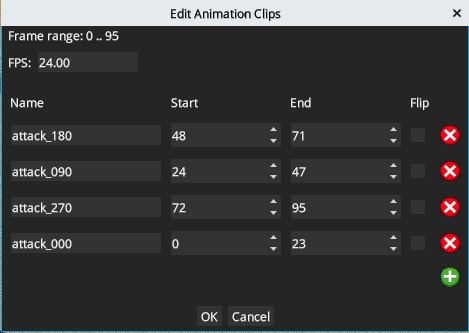
The dialog shows the available frame range and these authored settings:
| Setting | Purpose |
|---|---|
FPS | Playback rate for the Animation asset. |
Name | Clip name. |
Start | First frame in the clip. |
End | Last frame in the clip. |
Flip | Authored horizontal flip for the clip. |
Use the add button to create another clip and the delete button on a row to remove it. OK saves the changes; Cancel closes the dialog without applying them.
FPS belongs to the Animation asset. Changing it updates the authored playback rate for that Animation.
Multiple animations on one entity
One entity can own several Animation assets. For example, a hero could use one asset containing idle, walk, and run clips, and another containing attack and hurt clips.
The active Animation determines which authored clips appear in the entity’s Clip selector.
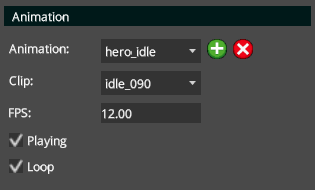
Entity Animation Properties
Select an animated entity and use its Animation section in Properties:
| Control | Purpose |
|---|---|
Animation | Selects which Animation asset owned by the entity is active. |
+ | Adds another available Animation asset to the entity. It does not create a new asset. |
| Delete | Removes the active Animation from the entity. It is unavailable when only one Animation remains. |
Clip | Selects a clip already authored in the active Animation asset. |
FPS | Edits the playback rate stored by the active Animation asset. |
Playing | Controls whether the current animation is playing. |
Loop | Controls whether entity playback loops. |
Create or edit clips from the Animation asset in Project Assets. The entity Properties panel only selects among those existing clips.
Regular animations vs tiled animations
Use regular Animation assets for actors, characters, enemies, animated entities, and effects.
Use Tiled Animations for animated map cells such as water, lava, torches, portals, and animated ground. Tiled animations are managed separately under Project Assets > Tiles > Animations.
Checklist
- Create or import regular Animation assets in Project Assets.
- Define clips on the Animation asset, not from entity Properties.
- Remember that one entity can own several Animation assets.
- Use
Animationto select the active asset. - Use
Clipto select one of that asset’s authored clips. - Use
PlayingandLoopfor the entity’s playback state. - Use Tiled Animations for animated map tiles.
See the Animations API to spawn authored animations, switch clips, and control playback from Java.