
Studio Editor Overview
Learn how Pixscape Studio provides visual scene authoring for 2D and 2.5D LibGDX games, from assets and layers to Runtime export.
Pixscape Studio is an open-source visual editor for authoring 2D and 2.5D game scenes for LibGDX. It exports project and scene data that Java game code loads and controls through Pixscape Runtime.
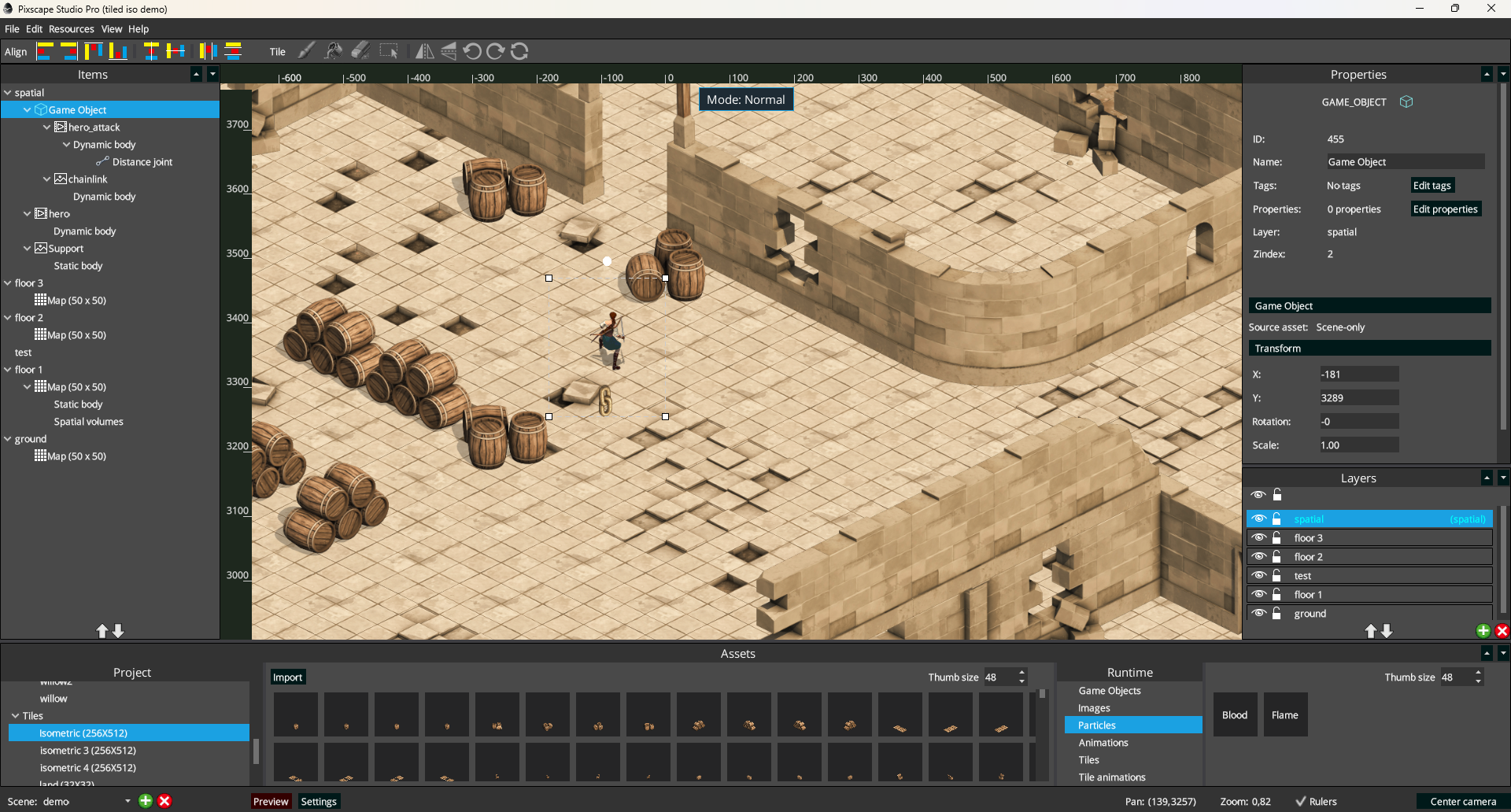
- Toolbar
Common alignment, selection, transform, and scene-editing tools.
- Editing mode
Shows whether the Canvas is currently in Normal, Tiled, Physics, or Spatial editing context.
- Items
The current scene hierarchy, including Universal Layers, entities, Game Objects, Tiled Maps, and supported child data.
- Properties
Context-sensitive controls for the selected Layer, entity, Game Object, Tiled Map, Physics item, or other content.
- Layers
The ordered Universal Layers, with controls for selection, reordering, creation, deletion, visibility, and locking.
- Project Assets
The project tree and imported resources available for scene authoring, including images, animations, particles, Game Objects, tiles, and tilesets.
- Runtime Availability
Extra resources the current scene prepares because gameplay may create or use them later.
- Bottom bar
Scene selection, Preview and Settings, pan and zoom readouts, rulers, and camera centering.
Continue with the Canvas guide, Items & Properties, Project Setup, and Import Assets. For specialized authoring, see Physics and Spatial; for resources used later from code, see Runtime Availability.
Docking panels
Studio panels can be docked into the main workspace, hidden, or opened as separate windows. The controls in a panel header let you detach the panel or hide it. An undocked panel opens in its own window.
Use the View menu and select the panel name to restore a hidden panel.
A normal dockable panel returns to its usual workspace location; tools that only open in a
separate window reopen there.
Layers and editing modes
A Universal Layer is an ordered scene-composition container.
An editing mode describes what the Canvas is currently editing.
Every scene Layer is a Universal Layer. It can contain mixed content such as sprites, animations, particles, lights, Physics-enabled entities, Game Objects, Tiled Maps, and other normal scene entities. Layers control composition and order; capabilities belong to the entities and Maps themselves.
Layer parallax is a general Layer property. A Universal Layer can also participate in Spatial Actor ordering when that behavior is enabled for it.
A Tiled Map is a first-class scene entity inside a Universal Layer. The Map owns its Tiled configuration, cells, collision state, and Spatial Depth settings; its owning Layer provides normal composition behavior.
Editing modes
Normal
Selection, transforms, and normal entity or Game Object editing.
Tiled
Tiled Map and cell editing.
Physics
Physics body, shape, and joint editing.
Spatial
Spatial structure and volume editing.
Editing modes do not define Layer categories. Studio changes editing context according to the
current selection, and the top-center Canvas indicator displays
Mode: Normal, Mode: Tiled, Mode: Physics, or
Mode: Spatial.
Automatic mode switching
Selection in the Canvas and in the Items panel is one editor-selection workflow. Selecting a Tiled Map enters Tiled editing; selecting a Physics body, shape, or joint enters Physics; selecting a Spatial structure or volume enters Spatial; selecting a normal entity or Game Object returns to Normal. You normally do not need to keep choosing modes manually from the toolbar.
The specialized guides cover Tiled maps, Physics, Spatial, and Animations in detail.
Where is the atlas manager?
Pixscape manages runtime resource preparation and atlases automatically, so there is no separate atlas-management workflow in Studio. You work with logical assets; Pixscape prepares the resources and atlas data needed by each scene for Runtime use.
Resources used by the scene
Resources already used by scene content are discovered automatically. You do not manually place sprites, animations, particles, Tiled assets, or supported dependencies into an atlas.
Resources used later from code
A Game Object spawned later, a gameplay particle effect, a dynamic sprite or animation, or another supported resource may never be placed in the authored scene. Declare those extra needs in Runtime Availability.
Project Assets contains everything imported and available to the project. Runtime Availability contains extra resources this particular scene must have ready because game code may use them later. Resources already present in scene content normally do not need to be added again. Runtime Availability is scene-relative.
See Runtime Availability for the authoritative preparation and scene-loading rules.
Studio Free
Pixscape Studio Free is licensed under Apache 2.0. Download the current version from the Studio Free release page, or browse the source code.
Studio Free includes a visual HUD editor for HudScreens, with a widget hierarchy, Properties editing, and interactive test mode. You can keep multiple scenes open in document tabs and switch between their editing contexts.
HUD editing
Create a HudScreen in the project assets, then open it in its own editor document. Arrange widgets on the HUD canvas, inspect the hierarchy and edit the selected widget in Properties. TEST mode lets you try the HUD’s input behavior in the editor. A scene can reference a HudScreen so its HUD resources are included when that scene is prepared and exported.
Multiple open scenes
Open several scenes in document tabs to work across them in one Studio session. Switching tabs restores the corresponding scene editing context, so each scene can remain open while you edit another.
Version compatibility
Projects created with Studio 0.2.0 or earlier require their Tiled and Spatial data to be reimported or recreated for 0.3.0. There is no automatic migration; back up the older project and follow the current Tiled import workflow before saving it with the current Studio.
Recommended first steps
- Create or open a project.
- Import assets.
- Create a scene.
- Drag assets from the Assets panel to the Canvas.
- Adjust objects using the Properties panel.
- Export the project.
- Run it from a LibGDX application using the Pixscape Runtime.
Next, read Create Your First Project and Runtime Setup to connect an exported project to your game.