
Tiled Animations
Create and edit animated tile assets visually in Pixscape Studio for Tiled Maps exported to LibGDX games.
On this page
Tiled animations let you create animated tile assets directly from existing tiles. They are useful for water, lava, portals, torches, machinery, animated floors, doors, or any repeating visual effect that belongs to a tiled map.
A tiled animation is still a tile asset. Once created, it can be painted into a Tiled Map like a regular tile, while its frames play over time.
Tiled animations are managed under Project Assets > Tiles > Animations.
They are different from regular sprite animations, which are managed in the root-level Animations section.
Finding tiled animations
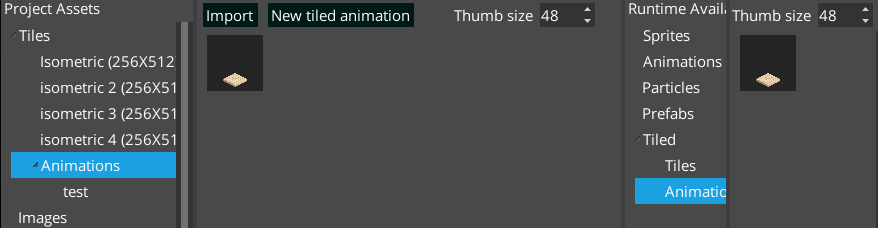
Open the Project Assets panel, expand Tiles, then select Animations.
This section contains tiled animations. From there, you can create a new tiled animation or select an existing one.
Do not use the root-level Animations category for this. That section is for regular sprite animations.
Creating a new tiled animation
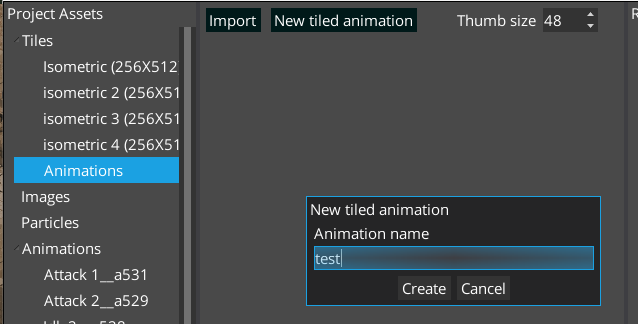
To create a tiled animation:
- Open
Project Assets. - Expand
Tiles. - Select
Animations. - Click
New tiled animation. - Enter the animation name.
- Click
Create.
The new animation appears under Tiles > Animations.
Adding tiles as animation frames
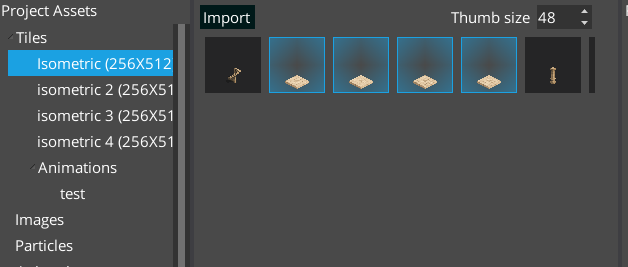
A tiled animation is built from existing tile assets.
To add frames:
- Select a tile set under
Project Assets > Tiles. - Drag the tiles you want to use as frames.
- Drop them onto the tiled animation entry under
Tiles > Animations > your-animation-name.
The tiles must be dropped into the animation entry to become animation frames.
After that, select the tiled animation to view its frames.
Editing animation frames
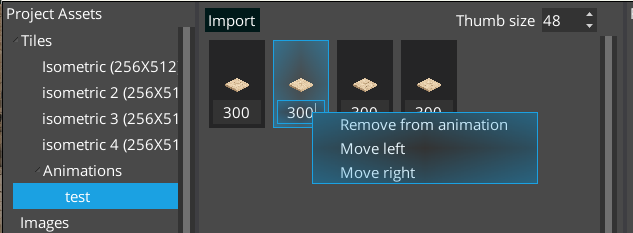
When a tiled animation is selected, its frames are displayed in the asset panel.
Each frame has a duration value displayed in milliseconds. For example, 300 means that the frame lasts 300 ms.
To change the timing, edit the duration value under the frame.
You can also right-click a frame to open the context menu.
Available frame actions:
Move left: moves the frame earlier in the animation.Move right: moves the frame later in the animation.Remove from animation: removes the frame from the tiled animation.
Use these actions to adjust the animation order, timing, and content.
Using a tiled animation
Once created, a tiled animation can be used like a tile asset in a Tiled Map.
Select the target Tiled Map, then use the tiled animation with the normal Tiled editing tools.
Use tiled animations for visuals that belong to the map itself, such as animated ground, walls, decorations, effects, or environmental elements.
For actors, characters, enemies, or moving entities, use regular sprite animations instead.
Checklist
- Open
Project Assets > Tiles > Animations. - Click
New tiled animation. - Name the animation.
- Drag tiles from a tile set.
- Drop them onto the tiled animation entry.
- Select the animation to view its frames.
- Edit frame durations in milliseconds.
- Use the context menu to reorder or remove frames.
- Use the tiled animation in a Tiled Map like a regular tile.
See the Tiled Animation API for controlling exported tile playback per cell from Java.