
Items & Properties
Navigate scene items, select editable content, and author typed custom properties in Pixscape Studio.
On this page
Studio uses one selection context across the Canvas, Items, and Properties. Select the content you want to work on, and Studio shows the controls relevant to that selection.
- Canvas provides visual selection and direct editing.
- Items shows where editable content sits in the scene structure.
- Properties shows the controls and authored data for the current selection.
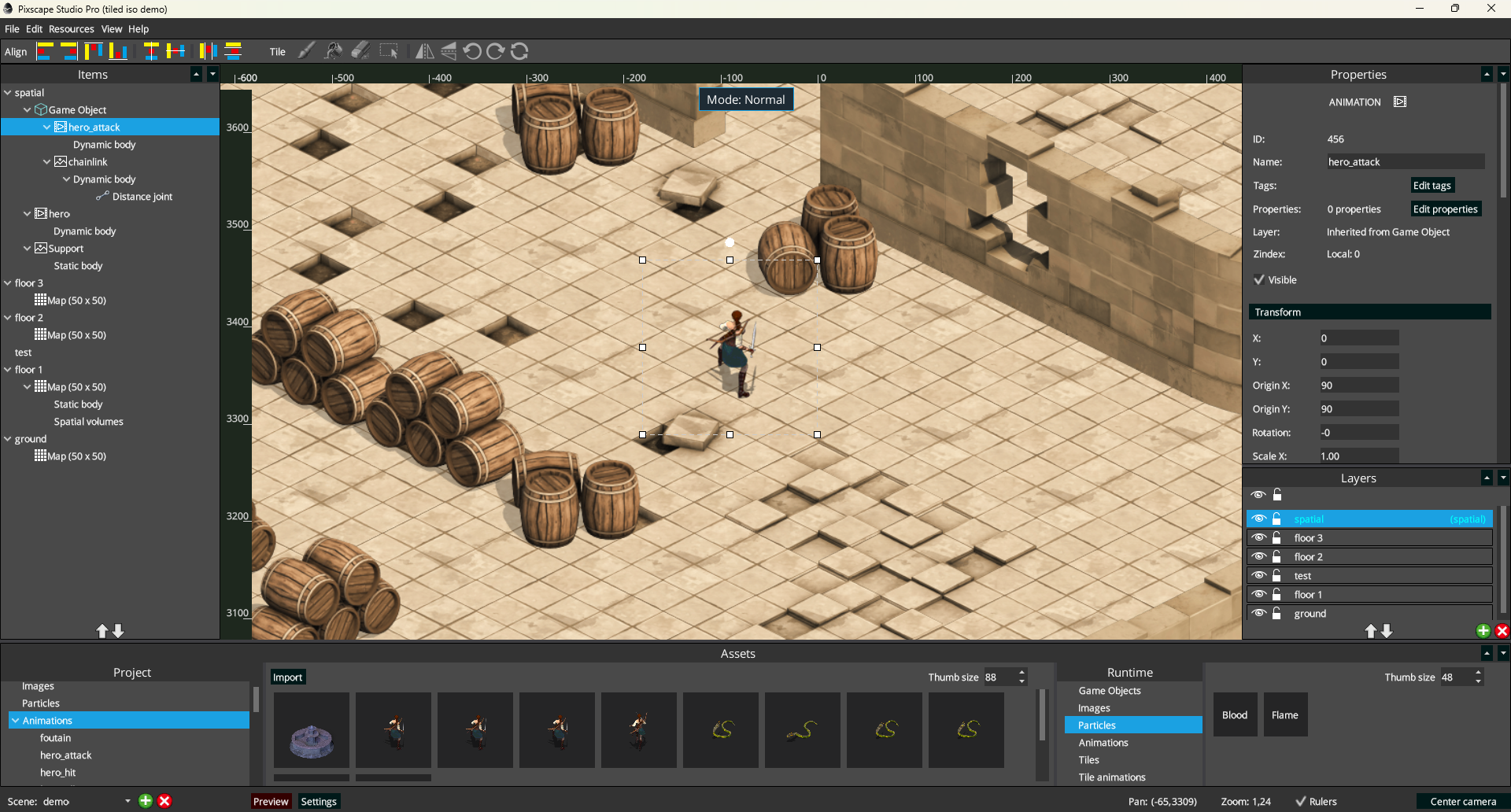
Here, hero is selected in Items and the same entity is selected on the Canvas. Properties shows its authored values. Physics bodies and joints also appear as child items where they provide their own editing context.
Items
Items shows the editable content of the selected Universal Layer and its nested authoring structure. A Universal Layer can contain mixed content such as ordinary entities, Game Objects, lights, particles, and Tiled Maps.
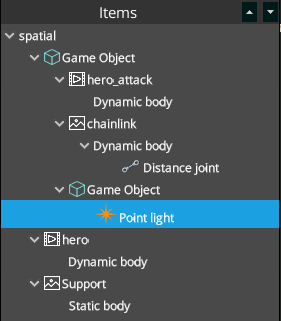
A Game Object root is a normal selectable entity, with its member entities shown underneath as hierarchy children. Each member remains independently selectable and editable. Physics bodies, shapes, and joints can appear as authoring children of ordinary entities or Game Object members. See Game Objects for the complete workflow.
Selection drives the editor
The example above shows Normal editing. Selecting a normal entity or Game Object member keeps Normal mode; selecting a Tiled Map, Physics item, or Spatial structure enters its corresponding editing context. Items identifies the current target, Properties adapts to it, and the top-center mode indicator shows the active context.
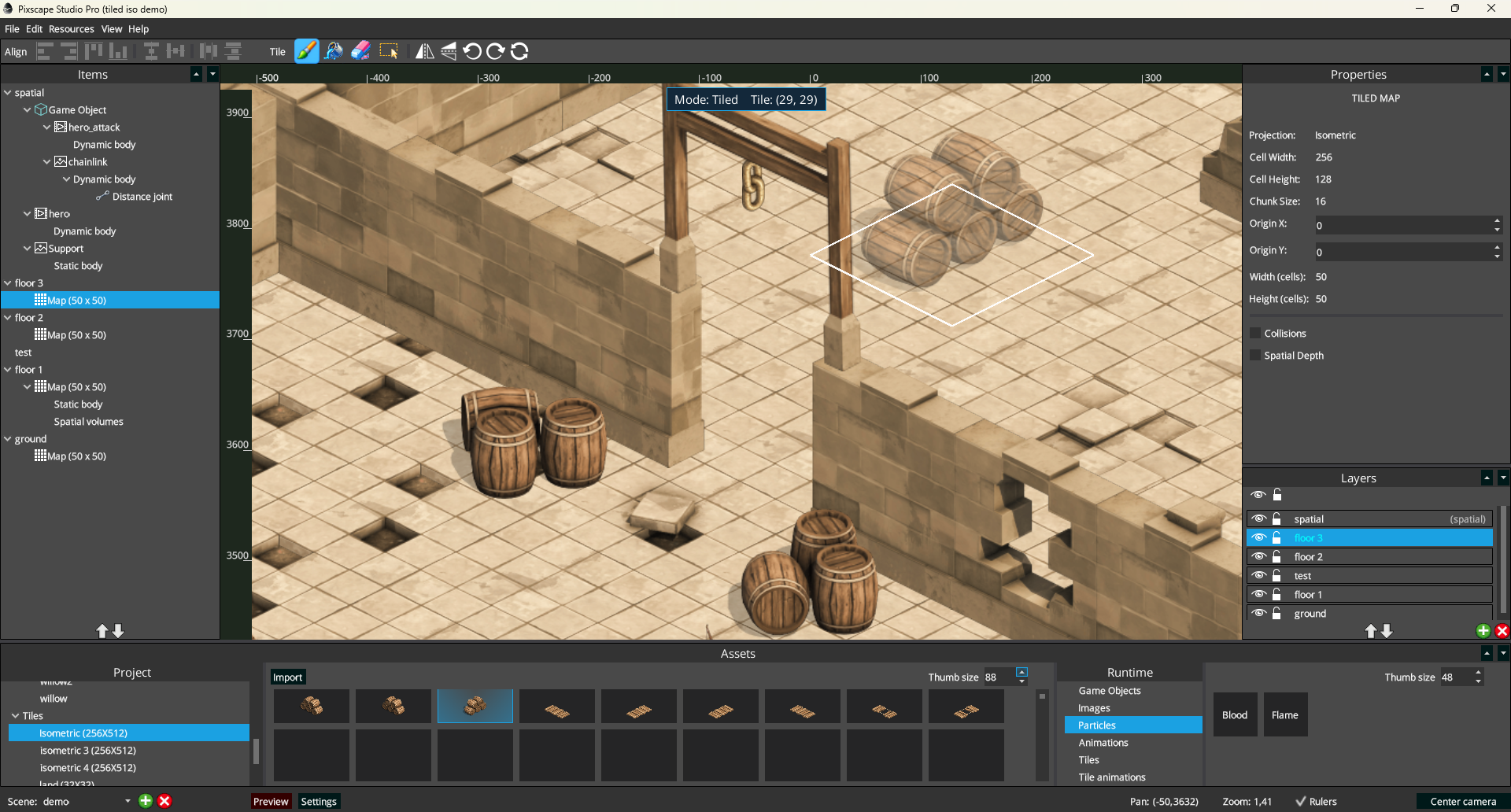
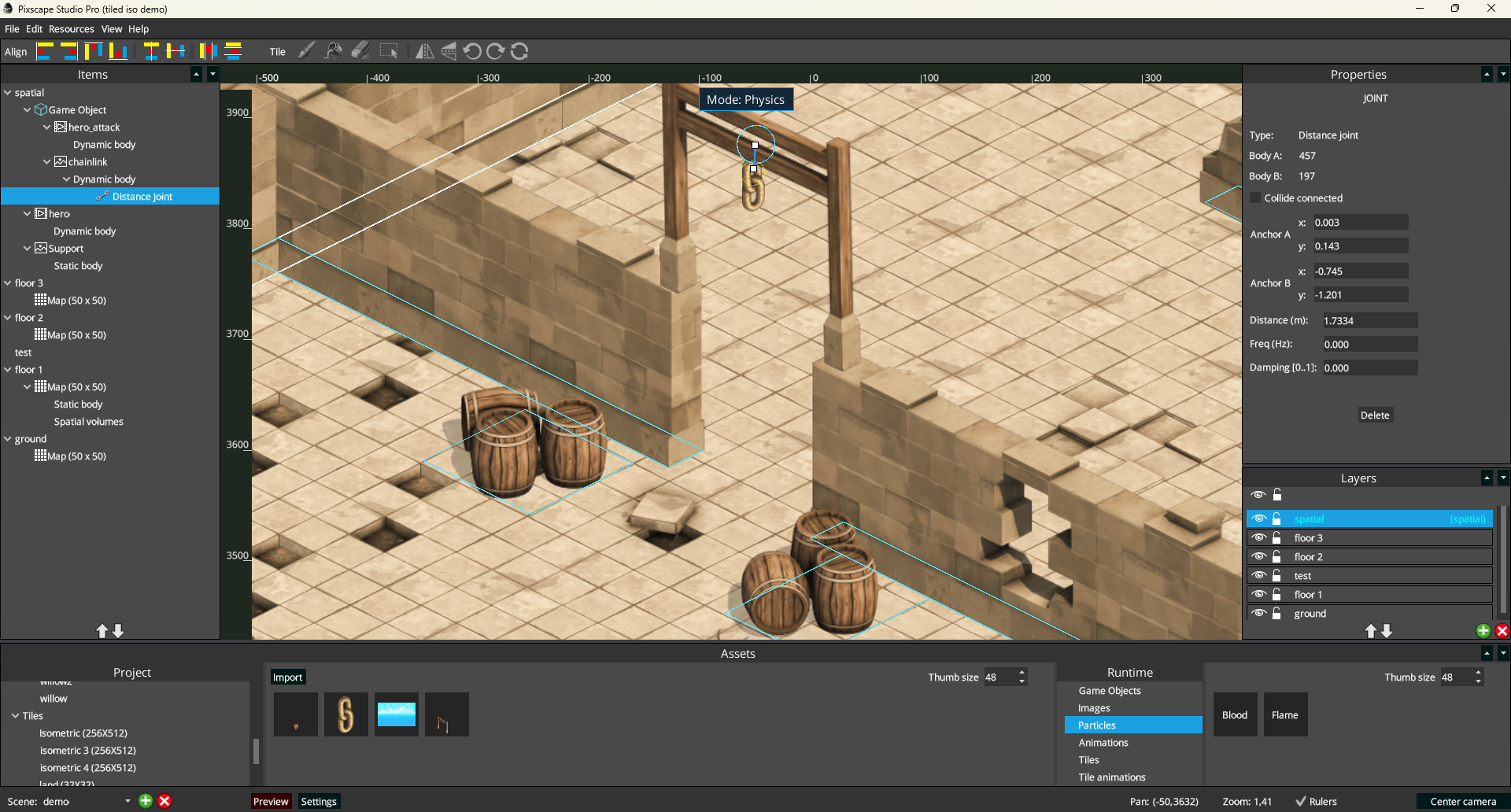
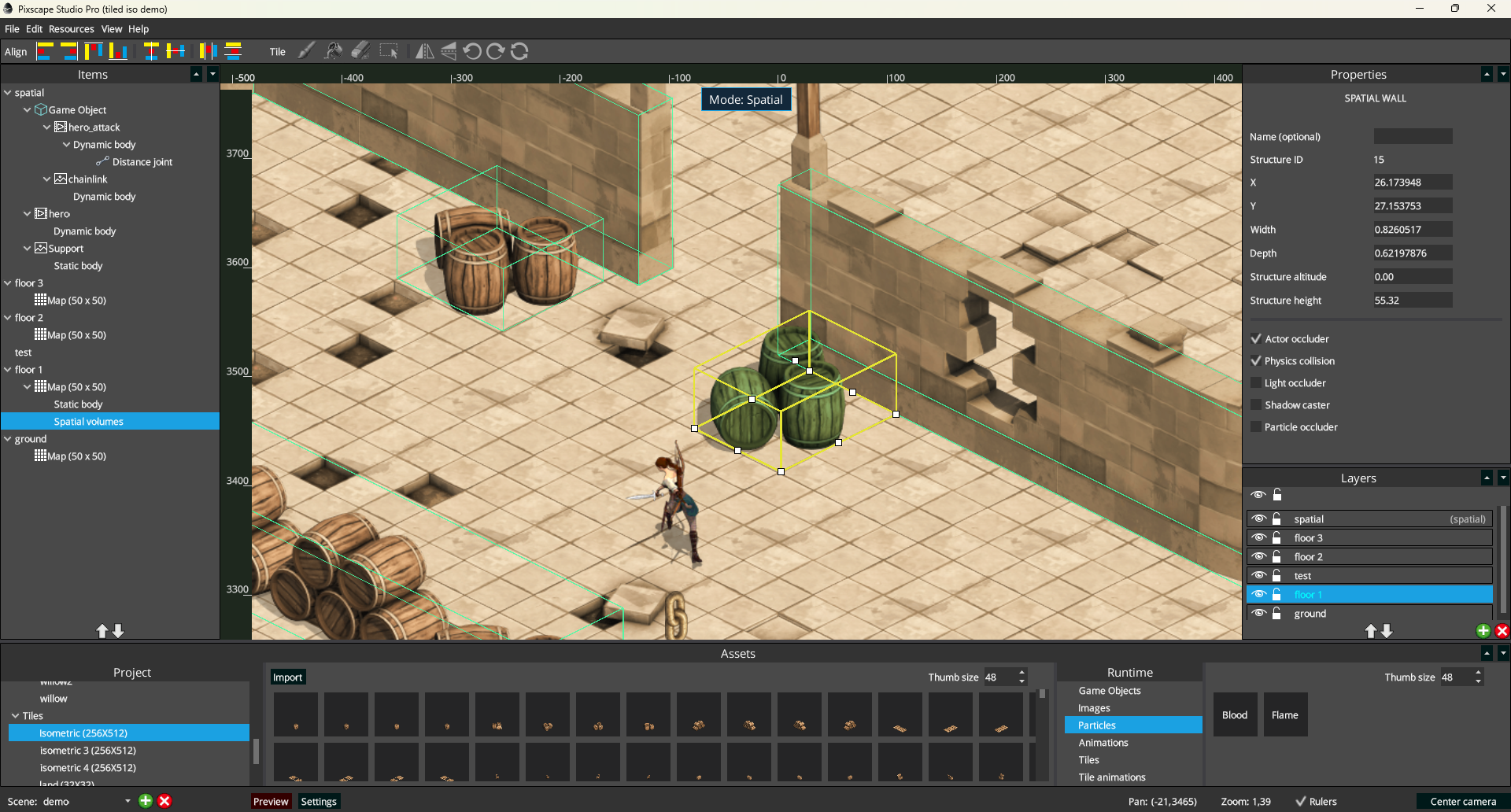
See Layers and editing modes for the complete mode model.
Properties
Properties is context-sensitive. It can show controls for the Scene, Universal Layer, entity, Game Object member, Tiled Map, Physics body, shape or joint, Spatial structure, or other supported selected content.
For a normal entity, common authored data can include its ID, name, tags, custom properties, layer, zIndex, visibility, transform, and type-specific controls. Specialized workflows remain in their dedicated guides: Animations, Physics, and Spatial.
For a Game Object member, Layer placement is inherited from the Game Object root and is shown as inherited in Properties; its zIndex remains local to the hierarchy. See Game Objects for hierarchy authoring.
Selecting a Universal Layer shows its own Layer properties, including its name, description, index, general parallax, and Spatial Actor participation when available.
Selecting a Tiled Map shows that Map’s configuration directly, including its projection, cell and chunk geometry, origin, dimensions, collisions, and Spatial Depth. Tiled-specific settings belong to the Map; general Layer properties such as parallax remain on its owning Universal Layer.
Typed custom properties
Custom properties let you attach gameplay or tool data to authored scene content without requiring a dedicated Pixscape field for every game-specific value. Examples include health, movement speed, interaction targets, team colors, gameplay flags, and structured configuration.
Pixscape custom properties keep their value type instead of storing every value as text.
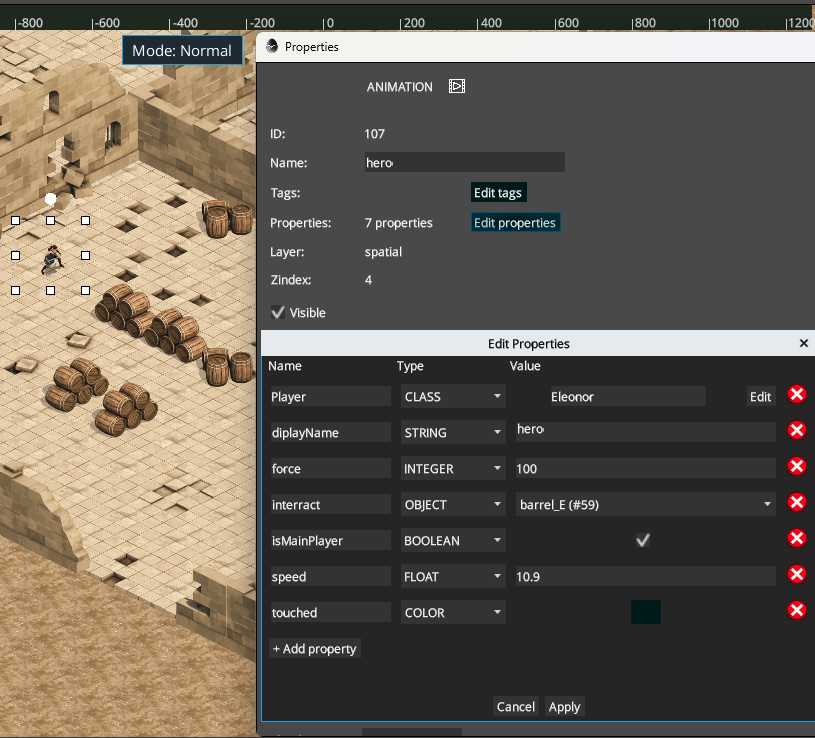
Supported types
| Studio type | Use |
|---|---|
STRING | Text |
INTEGER | Whole-number values |
FLOAT | Decimal values |
BOOLEAN | True/false values |
COLOR | An authored color value |
OBJECT | A reference to another supported scene entity |
CLASS | A structured set of nested typed properties |
Editing properties
For a supported selected item:
- Select it in
Itemsor on the Canvas. - Find
Properties. - Click
Edit properties. - Add a property.
- Choose its type.
- Enter the corresponding value.
- Apply the changes.
The value editor adapts to the selected type. Boolean values use a checkbox, Color values use a color editor, Object values use an entity selector, and Class values open a nested editor.
Class and Object properties
A Class property contains a structured set of nested typed properties. Class values can contain further Class properties when the authored data needs another level of structure.
An Object property lets authored data refer to another supported scene entity. Studio provides a selector for supported entities in the current scene.
Tags vs custom properties
Tags are lightweight labels for finding and grouping entities. Custom properties are named, typed values that carry authored gameplay or tool data.
Use properties from Runtime
Properties authored in Studio are exported with supported entities and can be read from Java through the entity properties facade:
EntityRef enemy = api.entities().requireTag("Enemy");

int health = enemy.properties().getInt("health", 100);
float speed = enemy.properties().getFloat("speed", 80f);
boolean aggressive =
        enemy.properties().getBoolean("aggressive", false);
See Custom properties in Runtime for the authoritative Java access semantics.
Imported Tiled properties
Supported properties imported from Tiled objects become the same kind of typed custom properties on the resulting Pixscape entities. See Import Tiled Maps & Tilesets for the supported import locations and inheritance rules.