
Game Objects
Create, edit, reuse, and spawn ECS-backed entity hierarchies.
On this page
A Game Object is a hierarchy of normal Pixscape ECS entities headed by one real root entity. The hierarchy can stay scene-local or be published as a reusable .gameobject asset.
The root owns the hierarchy’s world placement and position in its Universal Layer. Member transforms are local to their parent, members inherit their effective Layer from the top-level root, and each member keeps a local zIndex. Members remain individually selectable and editable; supported Physics and Spatial actors can participate without becoming a separate object model.
Convert a selection
- Select one or more supported scene entities.
- Right-click the Canvas.
- Choose
Convert Selection to Game Object…. - Enter the Game Object name.
- Click
Convert.
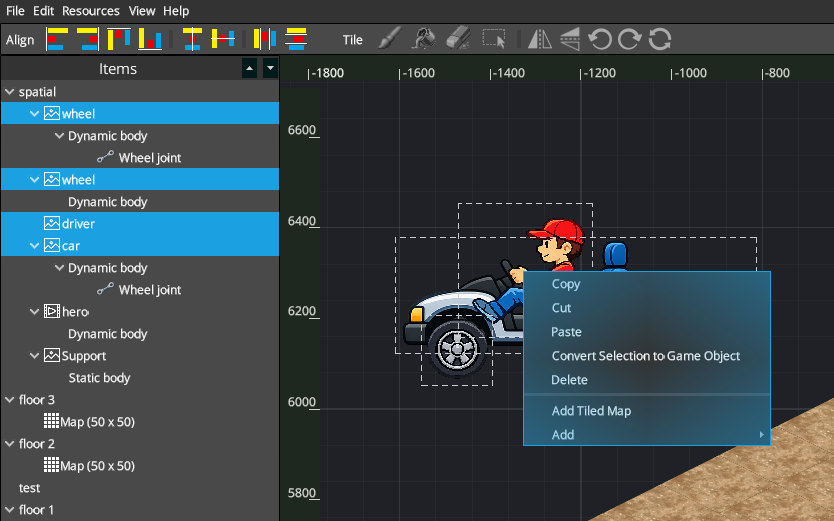
Conversion publishes the reusable .gameobject asset and wraps the selected scene content in a new real root. The content remains visually in place, and the root becomes the current selection.
Studio enables this action only for a compatible top-level selection. Selected entities must belong to the same Universal Layer, and Physics joints must remain fully contained by the resulting hierarchy.
Understand the hierarchy
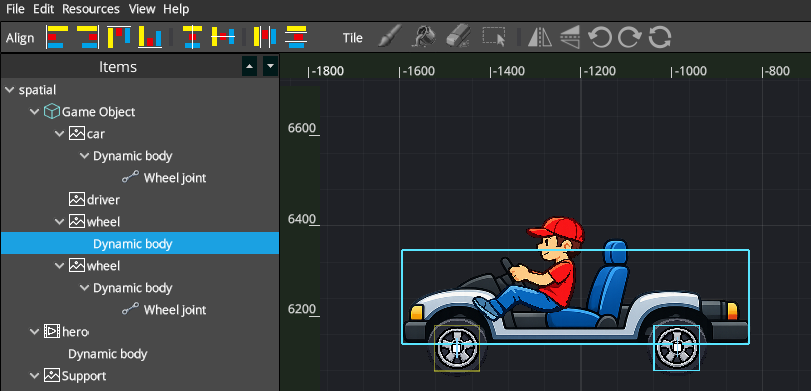
Items displays the real parent-child hierarchy. In this example, the Game Object root contains the car, driver, and wheel entities; Physics bodies and wheel joints remain visible beneath the entities they configure.
See Items & Properties for the general selection and contextual-editing model.
Edit the root or a member
Selecting the root targets the complete hierarchy. Moving or dragging it moves the hierarchy, its Universal Layer placement applies to every member, and Properties shows the Game Object controls.
Selecting a member targets that entity directly and shows its applicable properties. Its transform is local to its parent, its effective Layer is inherited from the top-level root, and its zIndex is local to the hierarchy. To move the hierarchy to another Universal Layer, move the root rather than a member.
When a root is already selected, dragging within its bounds keeps the root as the movement target. Clicking a visible member without dragging selects that member for individual editing.
Edit or extend a Game Object
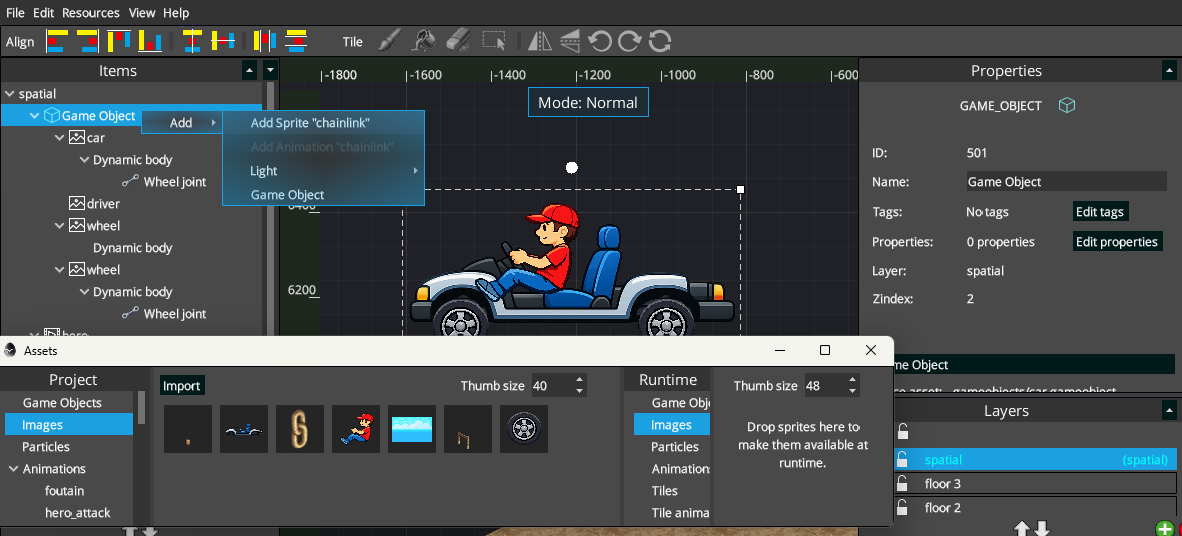
Select the root or a relevant nested Game Object in Items, then use its Add menu to add supported child content. Available choices depend on the selected asset and editing context. Added children remain normal editable entities, and nested Game Objects are supported where the menu permits them.
Physics inside Game Objects
Game Objects can contain Physics-enabled members. Bodies and joints remain editable after conversion or placement; selecting one enters the normal Physics editing context without hiding or flattening the hierarchy.
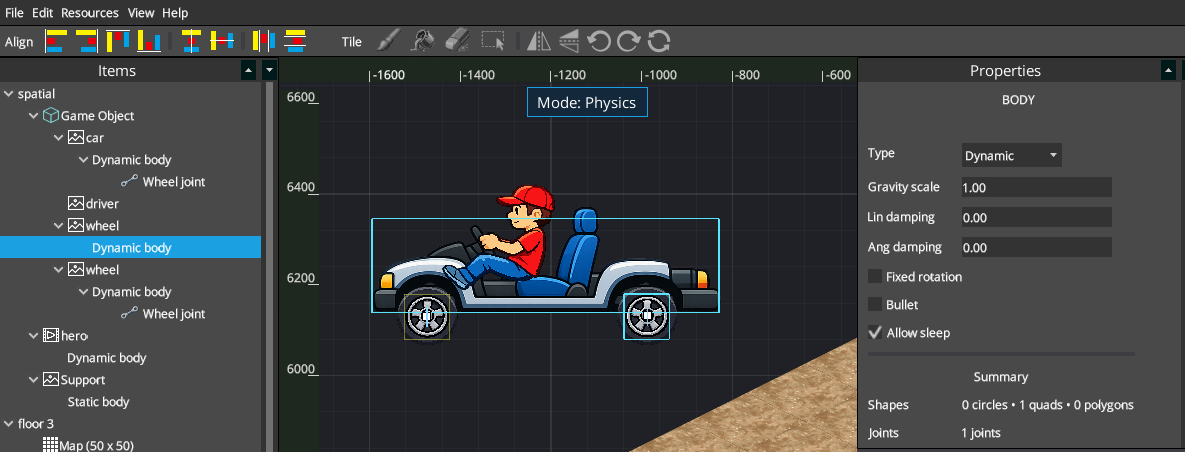
See Physics for body, shape, and joint authoring.
Publish a Game Object asset
Reusable assets appear under Project Assets > Game Objects.
Convert Selection to Game Object…converts ordinary selected scene content into a hierarchy and publishes its asset in one workflow.Save as Game Object Asset…publishes an existing top-level Game Object hierarchy without recreating or replacing it in the scene.
To publish an existing hierarchy, select its top-level root, right-click the Canvas, and choose Save as Game Object Asset…. A nested Game Object cannot be published independently as a standalone asset.
Reuse a Game Object asset
- Select
Game ObjectsinProject Assets. - Drag the asset onto the Canvas.
- Studio creates a new hierarchy in the active Universal Layer at the drop position.
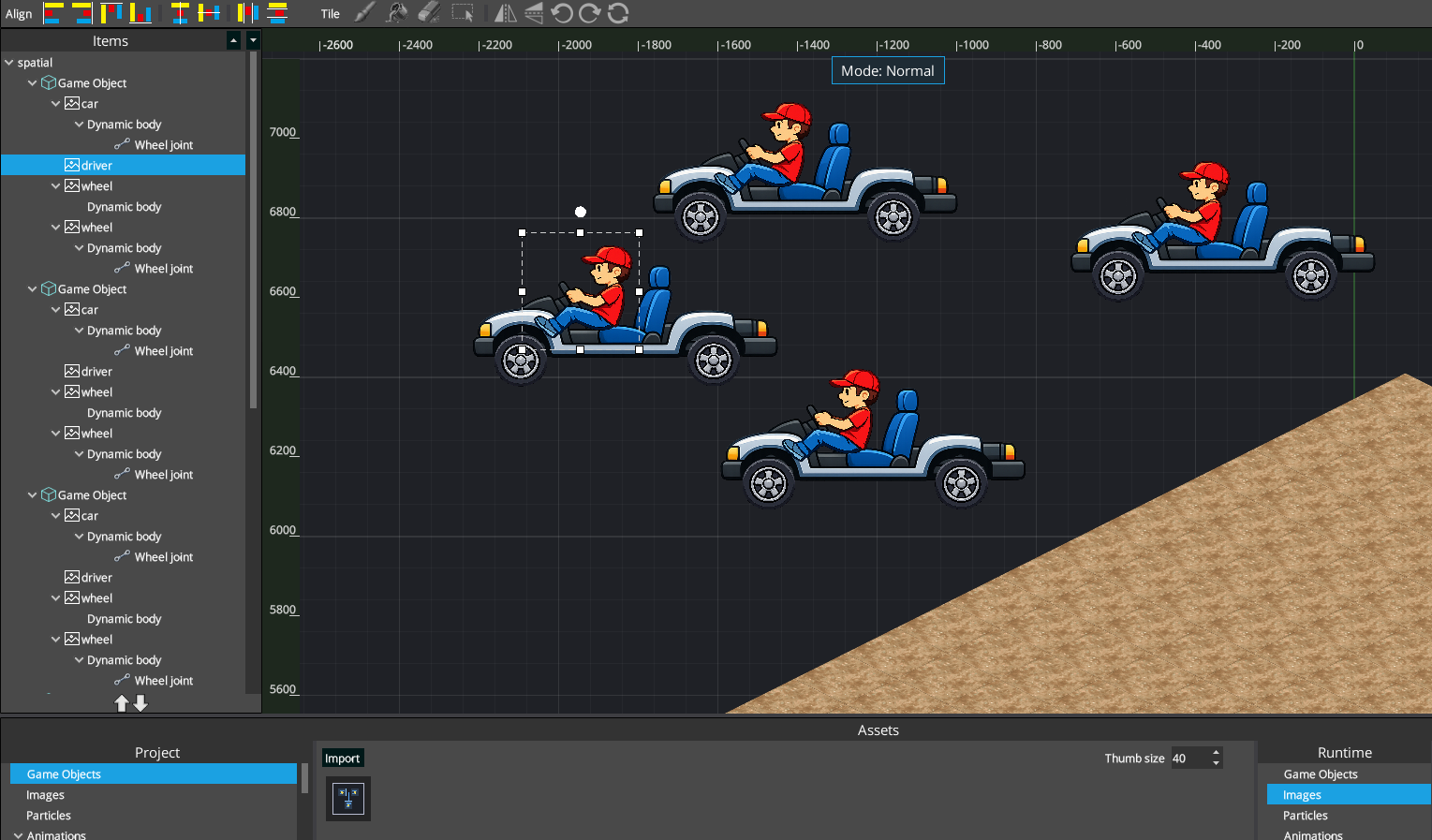
Editing a placed hierarchy does not change the source asset or other placed copies.
Universal Layers and Spatial actors
A Game Object lives in an ordinary Universal Layer; there is no separate Game Object Layer type. The top-level root owns Layer placement, and members inherit that effective Layer rather than moving independently between Layers.
Eligible members can participate as Spatial actors when their authored data and owning Universal Layer support it. Spatial authoring remains normal entity authoring inside the hierarchy; see Spatial V3 for 2.5D depth.
Delete hierarchy content
Deleting a Game Object root removes its descendant hierarchy as one history-aware operation. Deleting a member removes that member’s descendant branch. Studio preserves valid hierarchy structure and cleans up Physics relationships made invalid by removed bodies; Undo restores the authored hierarchy through the normal history workflow.
Spawn from Java
Studio-authored Game Objects can also be spawned through the Runtime API:
GameObjectInstance car =
        api.gameObjects().spawn("car", x, y);

EntityRef root = car.root();
See the Game Objects API for spawning and lifecycle details. If gameplay will spawn an asset that the authored Scene does not otherwise require, add it through Runtime Availability before export.